A private messenger from Vyoma Group for chats, calls, groups and more — where messages are encrypted on your device before they’re sent.
Vero works like the messengers you already know: one-to-one chats, groups, voice and video calls, photos, voice notes, stories and channels. The difference is what happens underneath. Every message is encrypted on your phone before it leaves, and the keys that unlock it never leave your devices.
Its core idea is simple: the server can deliver your messages, but it should not be able to read them. Vero is also honest about what its servers can see — read What Vero’s servers can see.
Open the file when it finishes. If Android asks, allow installs from your browser (Install unknown apps).
Tap Install. From then on, Vero offers updates itself.
Windows
Download the installer for Windows 10 and 11 from the same page. It updates itself in the background.
Web, and iPhone
Open atherhost.online in Chrome, Edge, Firefox or Safari. Your browser can install it as an app (look for Install in the address bar). On iPhone, open it in Safari, tap Share, then Add to Home Screen.
Tip
Installed apps check atherhost.online for new versions and offer to update. Your chats stay on your devices and in your backups — updating never touches them.
Sign up with an email and password, or with Google. Your encryption keys are made right there, on your device.
Open Vero and tap Create an account.
Enter a display name (what people see) and a username (how they find you).
Add your email and a password, then confirm it — or tap Continue with Google.
Tap Create account. Vero generates your keys on this device.
Good to know
Your keys are created on this device and never leave it. Vero can’t recover your password, so keep it somewhere safe — and turn on an encrypted backup.
Look around Vero before signing up. The demo uses sample chats stored only on your device.
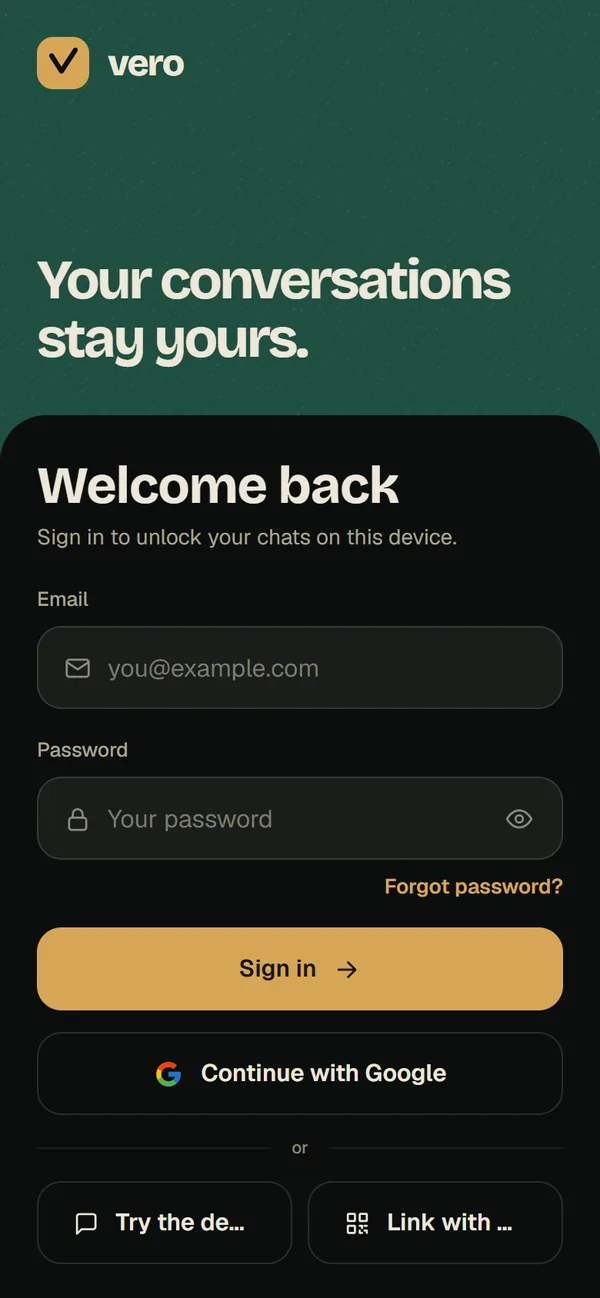
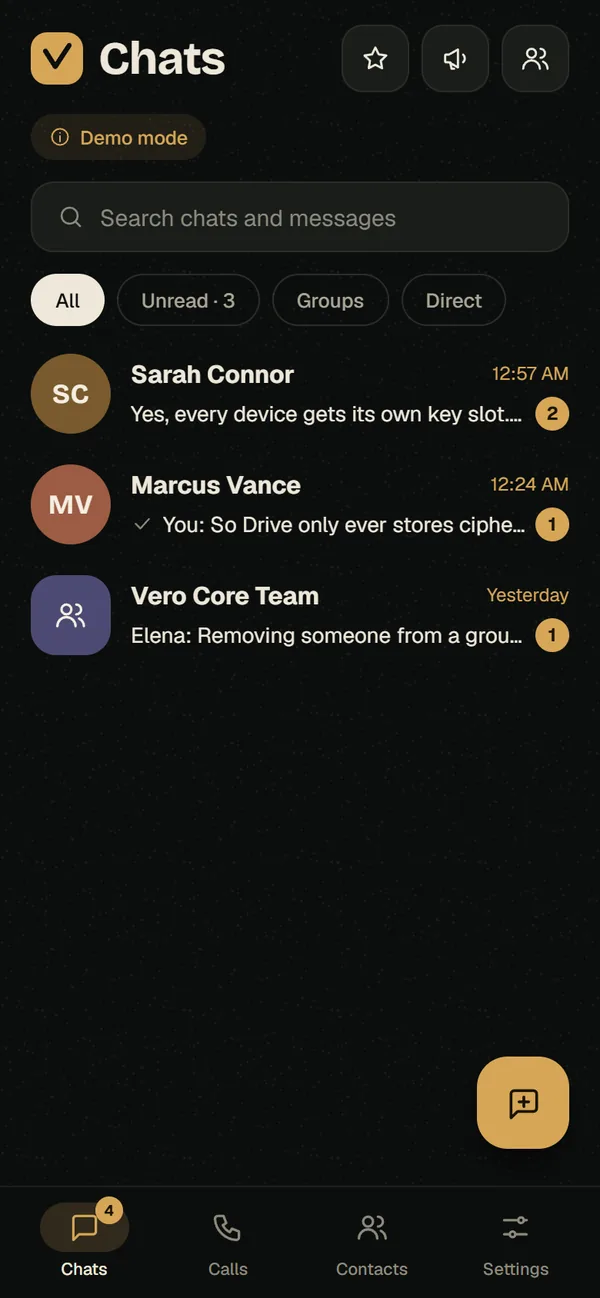
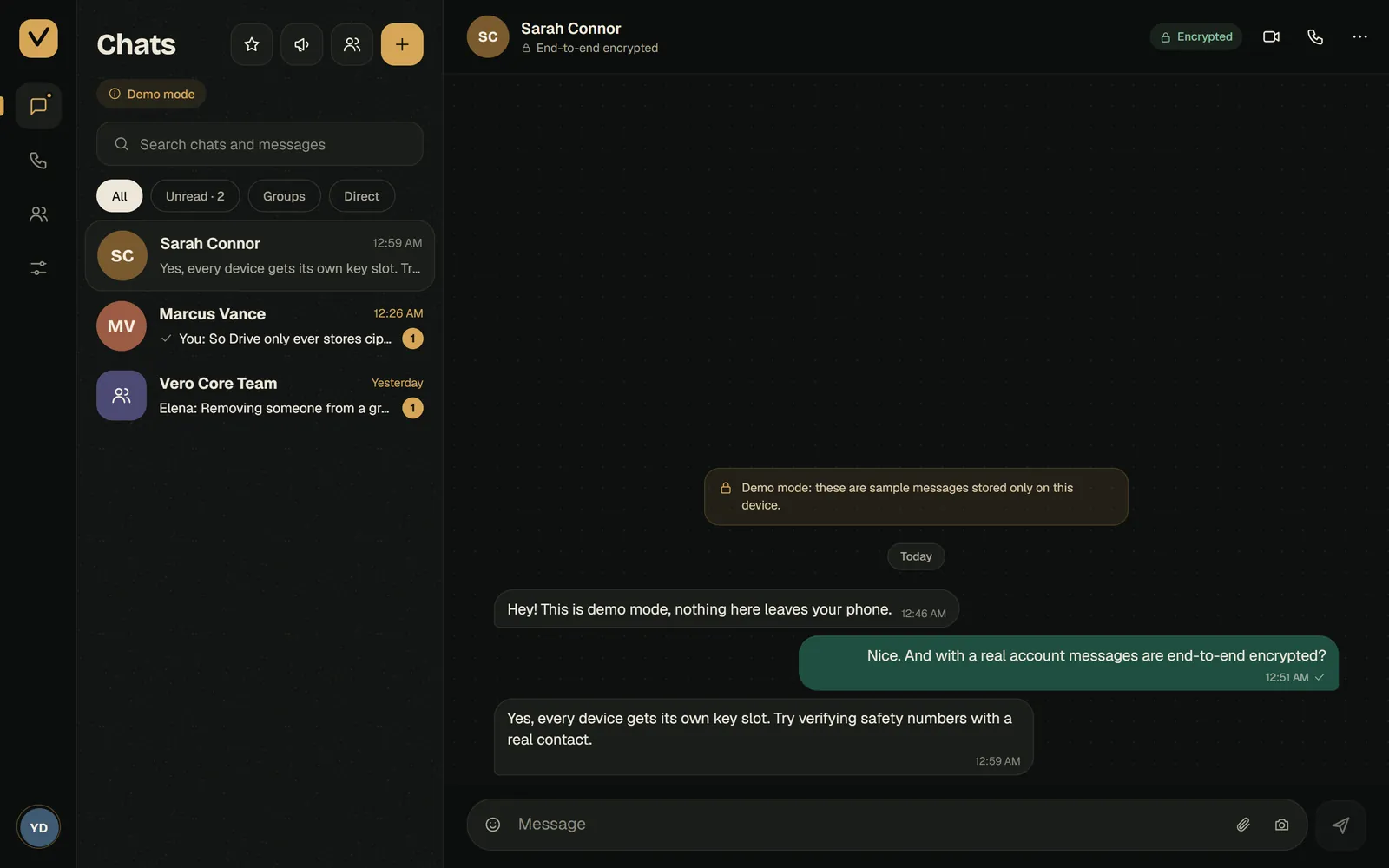
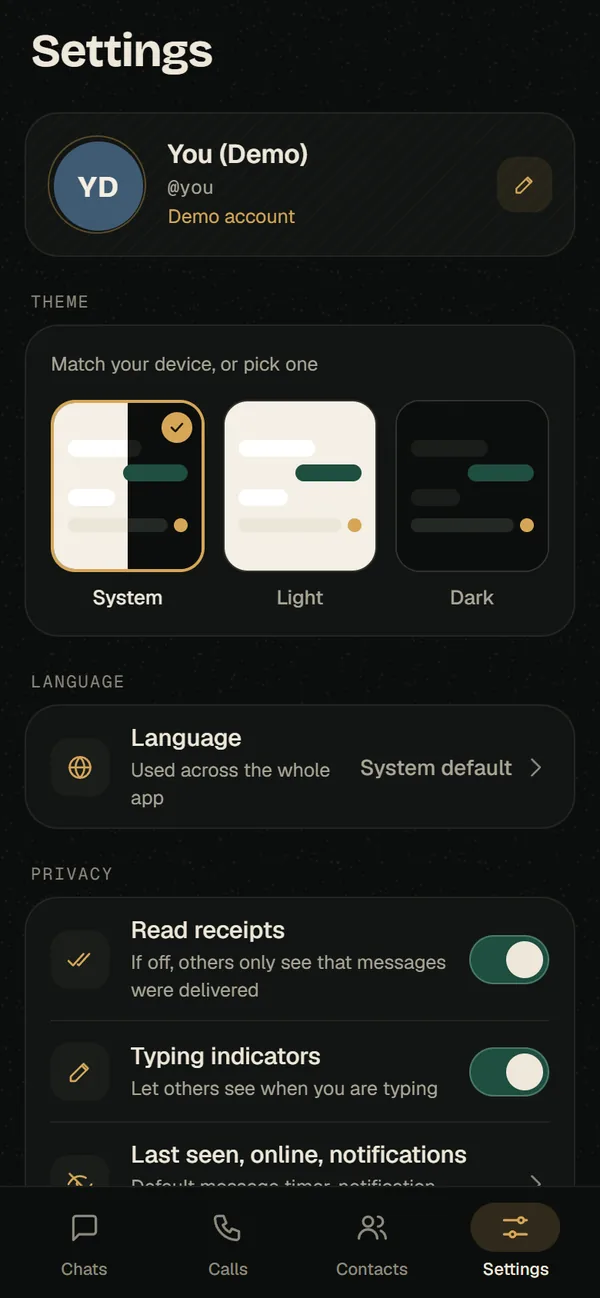
Tap Try the demo on the sign-in screen. You’ll get three sample contacts and a group so you can explore chats, menus, settings and the safety-number screen.
Nothing in the demo leaves your device — there’s no server behind it.
Features that need a server — stories, channels, communities, bots, backups and linked devices — tell you they need a real account.
Tap Leave demo at the bottom of Settings to go back to the sign-in screen.
Find someone by username, from your contacts, or with their QR code or invite link.
Tap New chat on the Chats tab.
Search the directory by name or username (type at least 2 characters).
Tap the person to open an end-to-end encrypted chat.
You can also open someone’s profile link (atherhost.online/u/username) or scan their personal QR code (My QR code). Finding friends from your phone contacts is opt-in — see Find friends.
Long-press a message you sent and choose Edit. Edited messages show a small edited label so everyone knows it changed. After 15 minutes, a message can no longer be edited — delete it and send a new one instead.
Hold the mic to record, or tap it for hands-free recording.
In any chat, hold the microphone button and speak; let go to send. For longer notes, tap it once to record hands-free, then tap send. Voice notes are encrypted like every other message.
Make new messages delete themselves for everyone after 1 hour, 24 hours, 7 days or 90 days.
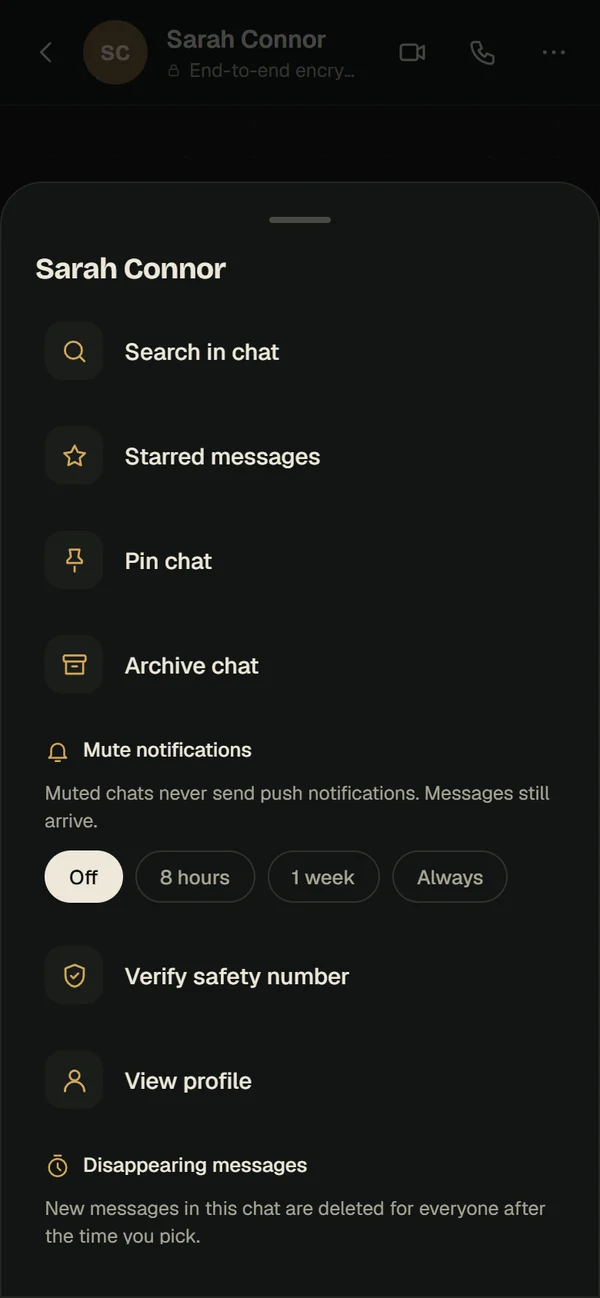
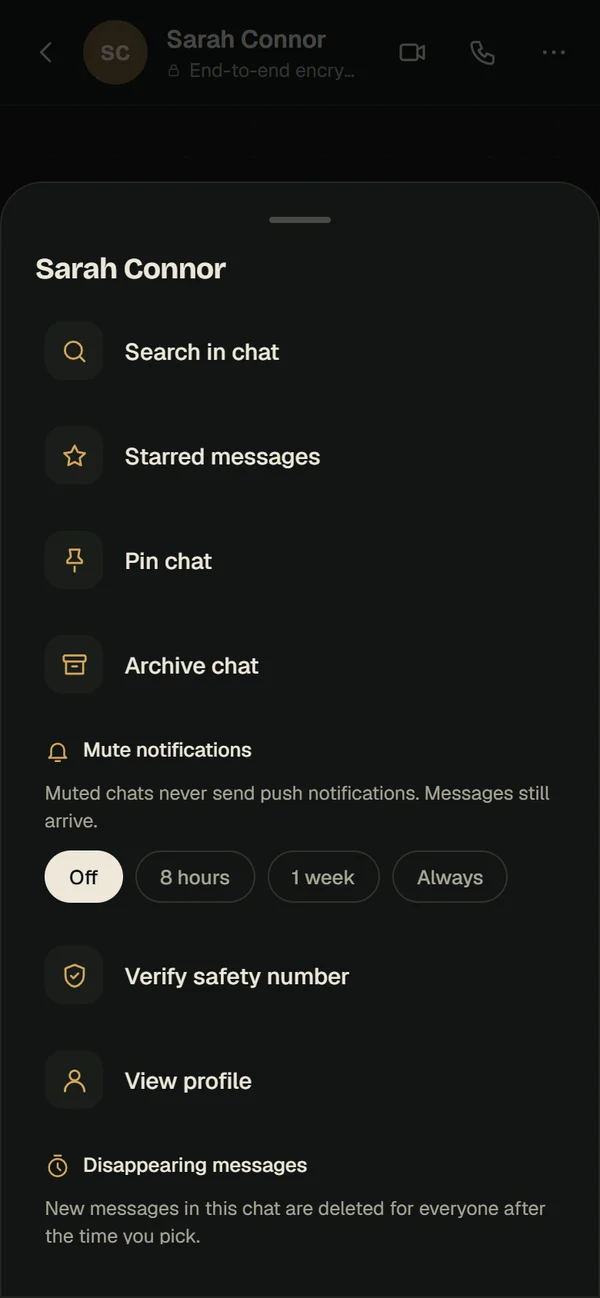
For one chat: open it, tap ⋯ → Disappearing messages, and pick a timer. New messages are deleted for everyone after that time.
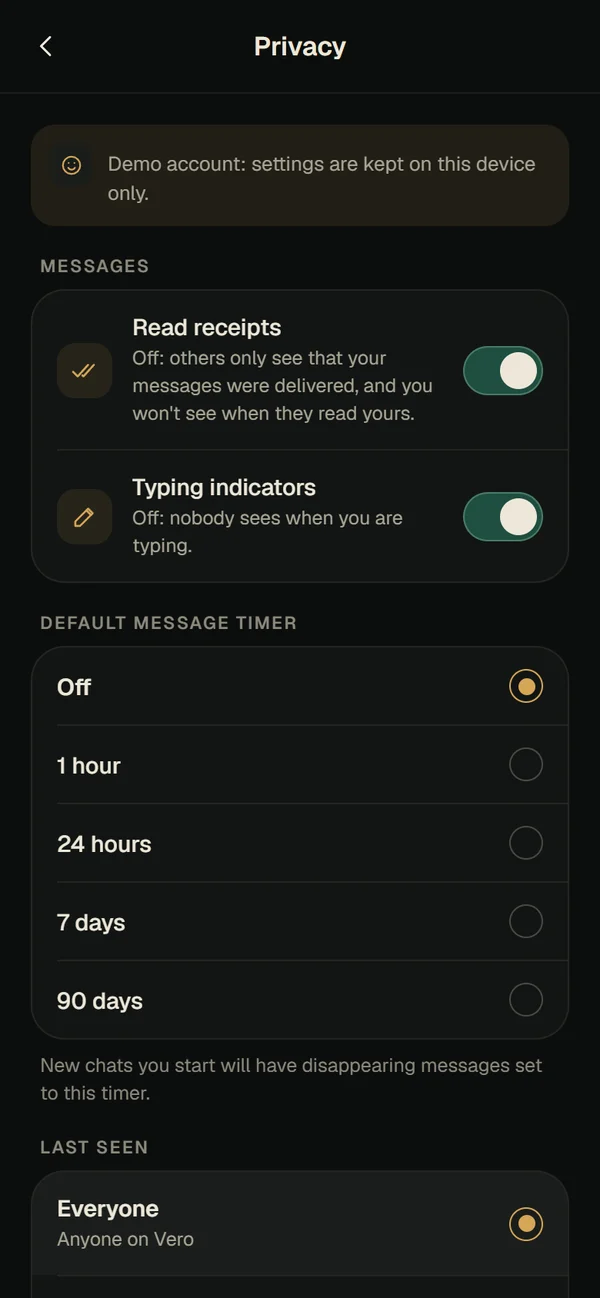
For every new chat: go to Settings → Privacy → Default message timer. New chats you start get that timer automatically.
Honest note
A timer applies to messages sent after you set it. Anyone in the chat can still take a screenshot — disappearing messages limit what’s stored, they don’t stop copying.
Bring related groups together under one roof — a school, a team, a building.
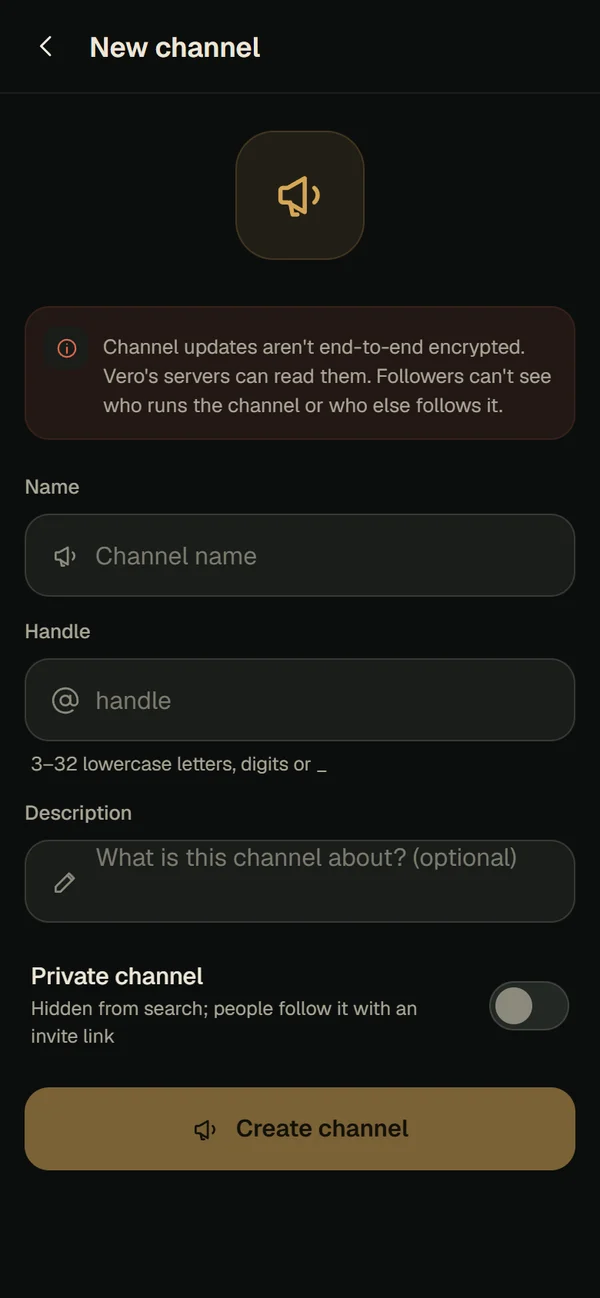
Go to Channels and communities → New community, give it a name and description, and tap Create community. You get an announcements group where only admins can post. Then add your existing groups or create new ones inside it.
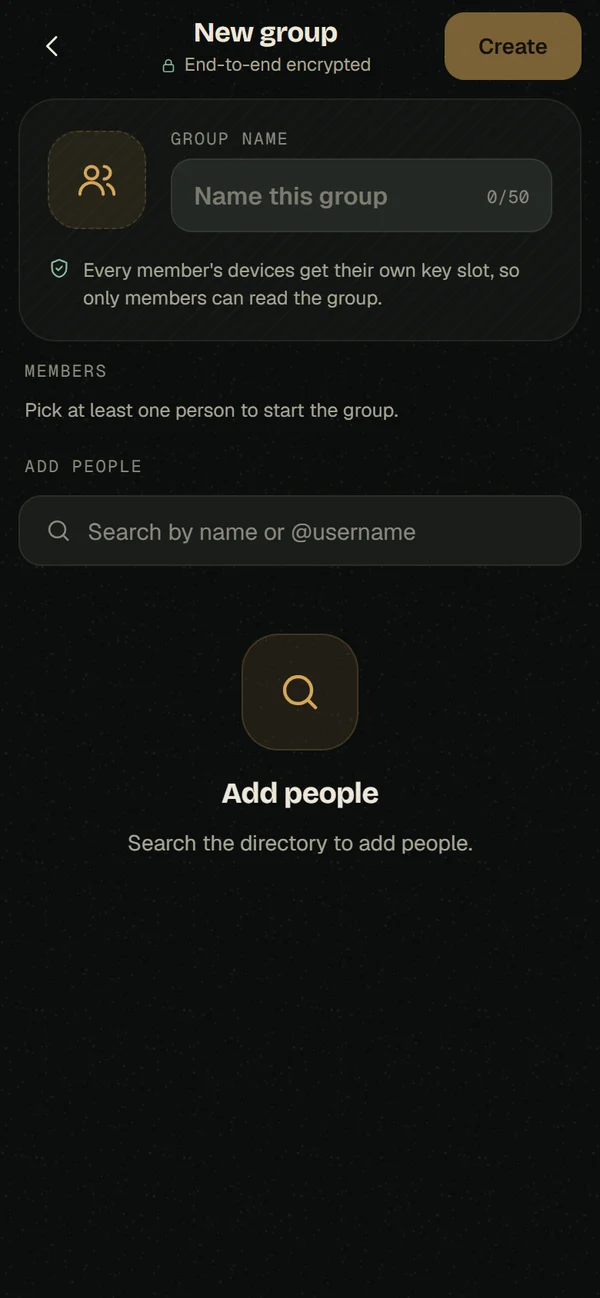
Group and community messages are end-to-end encrypted. Their names, descriptions and member lists are visible to Vero’s servers.
Tap the phone or camera icon at the top of any chat. Calls are end-to-end encrypted.
One-to-one calls, group calls and screen sharing are all end-to-end encrypted. Your call history lives in the Calls tab and is stored only on that device.
Call type
Who can join
One-to-one
You and the other person
Group call
Up to 8 people. In a bigger group, the first 8 to join can take part; others see that the call is full.
Tip
Screen sharing depends on your browser or device. If it says “Screen sharing is not available here”, try a desktop browser or the Windows app.
Share photos and videos that your chosen people can see — encrypted for each of them.
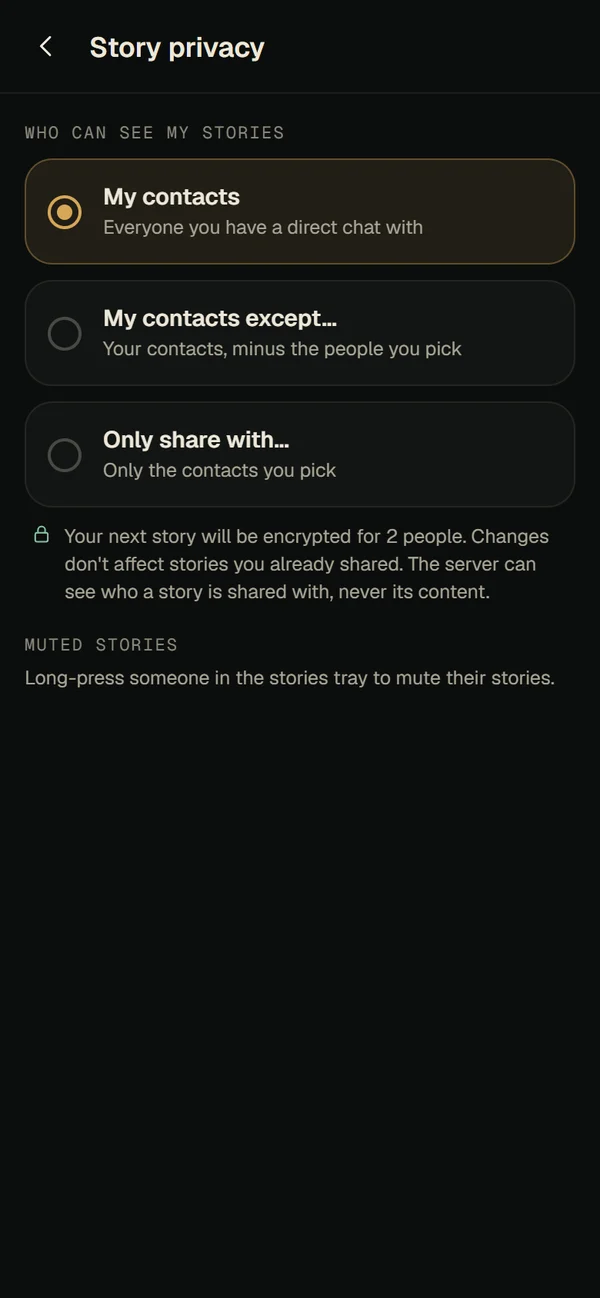
Open the stories tray at the top of your chats and add a photo or video (up to 49 MB). Each story is encrypted separately for every person you share it with.
Who can see your stories
Setting
Shares with
My contacts
Everyone you have a direct chat with
My contacts except…
Your contacts, minus the people you pick
Only share with…
Only the contacts you pick
Changes apply to your next story, not ones you already shared. The server can see who a story is shared with — never its content. To mute someone’s stories, long-press them in the tray.
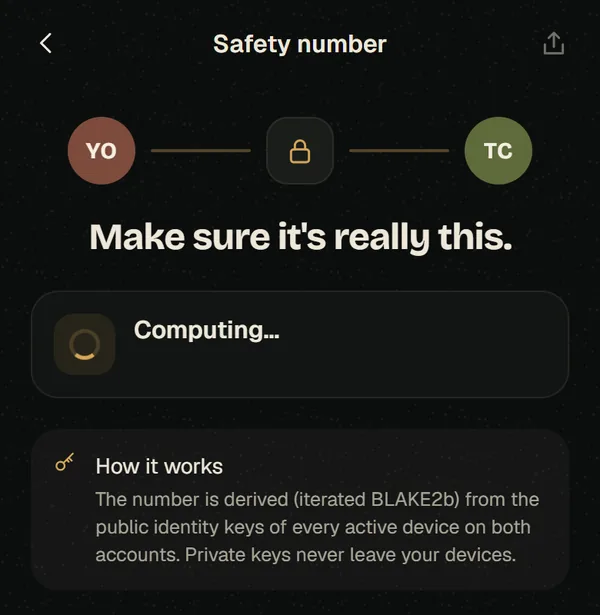
Make sure nobody swapped a key in the middle — compare a number with your contact once.
Open the chat and tap ⋯ → Verify safety number.
Compare the number with your friend — in person is best, or on a call where you recognise their voice.
If it matches, you’re talking to the right devices.
The number is derived (iterated BLAKE2b) from the public identity keys of every active device on both accounts. So it changes when either of you links or removes a device — that’s expected. Vero also pins device keys: an unexpected key change is rejected.
Forward secrecy isn’t here yet. Messages use long-term device keys today. A ratcheting protocol (Double Ratchet or MLS) is on the roadmap. In practice: keep your devices locked, and unlink devices you no longer use.
You can read this at any time in the app under Settings → How Vero protects you.
Turn it on in Settings → App lock. App lock is available in the iOS and Android apps — browsers can’t lock a web page the same way, so on a computer, lock your computer instead.
Finding friends by phone number is opt-in, hashed and rate-limited.
Open Find friends to check which of your contacts use Vero. Lookups use hashes and are rate-limited, and nothing about your contacts is stored. Under Who can find me you choose whether people can find you this way.
Every device that can read your messages is listed in Settings.
Go to Settings → Linked devices to see every device on your account. Unlink any you don’t recognise or no longer use — new messages stop being encrypted for it straight away.
Back up your chats so you can restore them later — locked with a passphrase, a recovery key, or both.
Go to Settings → Chat backup. Choose how to unlock it:
Unlock with
Good for
Recovery key (recommended)
A long random key in groups of four characters. Save it somewhere safe — a password manager or on paper.
Passphrase
Something you can remember. It’s stretched with Argon2id, so guessing it is slow.
Both
Either one can unlock the backup.
Then choose where it lives: Vero cloud (private, end-to-end encrypted storage, up to 50 MB) or your Google Drive. Turn on daily backups, or tap Back up now.
Good to know
Your backup is decrypted on your device. Vero never sees your recovery key or passphrase — so if you lose both, nobody can open the backup. Not even us.
After signing in on a new device, Vero offers to restore. Enter your passphrase or recovery key. Decrypting can take a little while, because the passphrase check is deliberately slow.
If it says “This recovery key has a typo”, check each group of four characters. If the backup was made with only one method, Vero tells you which one to use.
Chat with bots from the directory, or build your own.
Browse bots under Settings → Bots. Messages to a bot are end-to-end encrypted to the bot’s device — but the bot’s owner can read them, so don’t send a bot anything private.
Build a bot
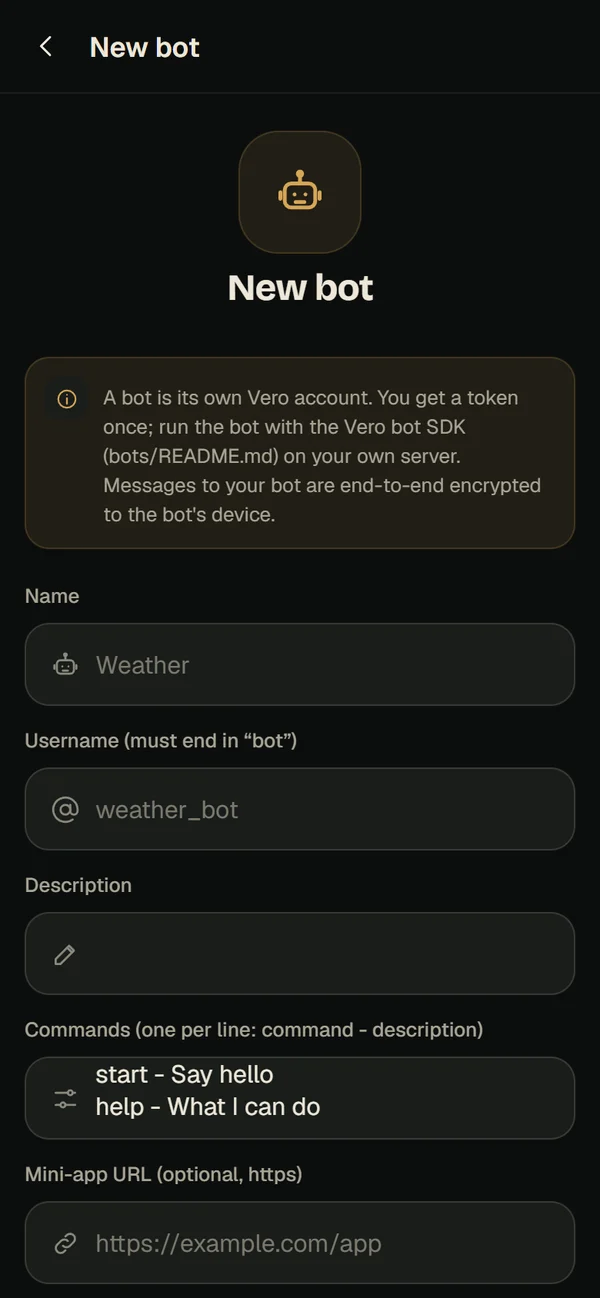
Go to Bots → New bot.
Pick a name and a username that ends in bot.
Add a description and commands, one per line: command - description.
Optionally add a mini-app URL (https) and list it in the directory.
Tap Create bot. You get a token once — copy it and run the bot with the Vero bot SDK on your own server.
Go to Settings → App updates → Check for a new version. The Android app downloads updates inside the app; the Windows app updates in the background; the web app is always the latest. All downloads are listed on the download page.
It changes when a contact gets a new phone, reinstalls Vero, or links or unlinks a device. If you didn’t expect it and you’re about to share something sensitive, verify again first.
Android blocks apps from outside the Play Store until you allow it.
When Android asks, allow your browser to Install unknown apps, then tap the file again. You need Android 7 or newer. If the download stopped part-way, delete it and download again.
You can reset your password with the link on the sign-in screen. But your old messages are protected by keys on your devices and in your backup: if you no longer have a signed-in device, your passphrase or your recovery key, nobody can decrypt them. That’s the trade-off that keeps them private.
Still stuck?
Tell us what happened and which device you’re on. We read every message, and we’ll fix the docs if they were unclear.
 Vyoma
Vyoma