 Vyoma
Vyoma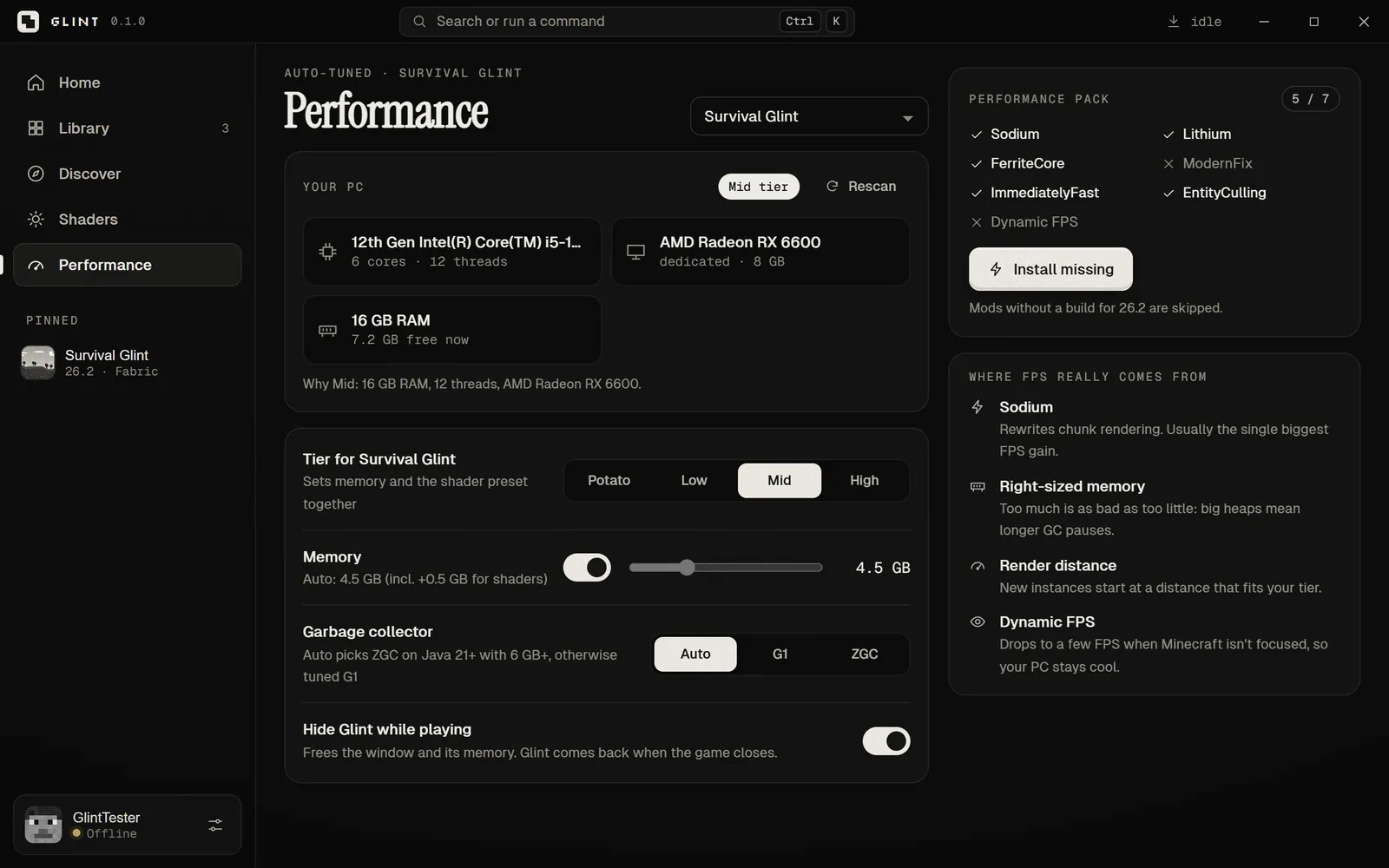
Why Minecraft struggles on weak PCs
Minecraft looks simple, but it’s demanding in unusual ways. The game builds the world out of chunks that constantly need re-rendering, much of its work happens on a single CPU core, and it runs on Java — which pauses now and then to clean up memory. On a laptop with integrated graphics, the GPU also borrows from your system RAM.
The good news: almost all of the fix is free. It comes from four things — performance mods, the right Java, the right amount of memory, and a few settings. A launcher can’t add FPS by magic, but it can get all four right.
1. Install performance mods (the biggest win)
These community mods change how Minecraft works under the hood. They don’t change how the game plays, and you can use them in singleplayer and on most servers.
| Mod | What it does |
|---|---|
| Sodium | Rewrites chunk rendering. Usually the single biggest FPS gain. |
| Lithium | Speeds up game logic like mobs, physics and block ticks — great in singleplayer. |
| FerriteCore | Cuts how much memory the game uses. |
| ImmediatelyFast | Speeds up drawing things like text, maps and the HUD. |
| EntityCulling | Skips drawing mobs and block entities you can’t see. |
| ModernFix | Faster loading and lower memory, especially with mods. |
| Dynamic FPS | Drops to a few FPS when Minecraft isn’t focused, so your laptop stays cool. |
These are made for Fabric and Quilt, and most have NeoForge builds too. Get them from Modrinth, and always pick the version that matches your Minecraft version.
2. Use the right Java
Every Minecraft version expects a specific Java. Running the wrong one can mean crashes, or worse performance than you should get.
Which Java your Minecraft version needs
Use the Java your version asks for: old versions often break on newer Java, and new versions won’t start on older Java.
View as table
| Minecraft | Java |
|---|---|
| Minecraft ≤ 1.16 | Java 8 |
| Minecraft 1.17–1.20.4 | Java 17 |
| Minecraft 1.20.5–1.21 | Java 21 |
| Minecraft 26.x | Java 25 |
Source: Mojang version metadata
Newer Java versions also bring better garbage collectors — the part that cleans up memory — which means fewer stutters.
3. Give it the right amount of RAM — not the most
It sounds backwards, but giving Minecraft too much memory can make it stutter more: a bigger heap means longer clean-up pauses. And on an 8 GB laptop, starving Windows of memory slows everything down.
A sensible amount of RAM for Minecraft
What Glint gives the game on each kind of PC. More isn’t faster.
View as table
| Your PC | Give Minecraft |
|---|---|
| About 4 GB | 1.5 GB |
| 8 GB laptop | 3 GB |
| 16 GB | 4 GB |
| 32 GB | 6 GB |
Source: Glint’s tuning engine
A good rule: give Minecraft around 2–4 GB for vanilla or light mods, and always leave Windows at least 2.5 GB. Heavy modpacks need more.
4. Change the settings that actually matter
| Setting | Try this |
|---|---|
| Render distance | 6–8 chunks (the biggest single setting) |
| Simulation distance | 5–6 chunks |
| Graphics | Fast |
| Clouds | Off or Fast |
| Particles | Decreased |
| Entity shadows | Off |
| Biome blend | Off or 3×3 |
| Max framerate | Your screen’s refresh rate (often 60) |
5. Quick Windows fixes
- Plug your laptop in. On battery, Windows often slows the CPU and GPU down.
- Pick the fast GPU. If your laptop has two GPUs, go to Settings → System → Display → Graphics, add
javaw.exeand choose “High performance”. - Update your graphics driver from Intel, AMD or NVIDIA.
- Close heavy apps — browsers with many tabs, and game-capture overlays.
Or let Glint do all of it
Everything above is what Glint, our Minecraft launcher, does for you automatically. It scans your CPU, GPU and RAM, picks a tier (Potato, Low, Mid or High), installs the right Java, sets the memory and Java flags, installs the performance pack for your version — and tells you which mods it skipped and why.
Early access for Windows 10/11. You need to own Minecraft: Java Edition.
Want shaders too? Read our guide to shaders on laptops with integrated graphics.
The 30-second checklist
- Fabric + Sodium + Lithium
- The Java your version needs
- 2–4 GB of RAM (leave Windows 2.5 GB)
- Render distance 6–8
- Laptop plugged in, fast GPU selected

Glint
A fast Minecraft launcher that tunes itself to your PC.